
This product is free. Download it from the official Verveo website at https://verveo.boopup.dev/dashboard.
1
Download the product
Download the product from your dashboard. Most browsers save files to your Downloads folder by default.
2
Insert the file into Roblox Studio
Once downloaded, insert the file into Roblox Studio. If you’re unsure how to do this, the video below walks you through it:
3
Create a RankGun account
Head to app.rankgun.works and log in with Discord. You’ll land on a page like this: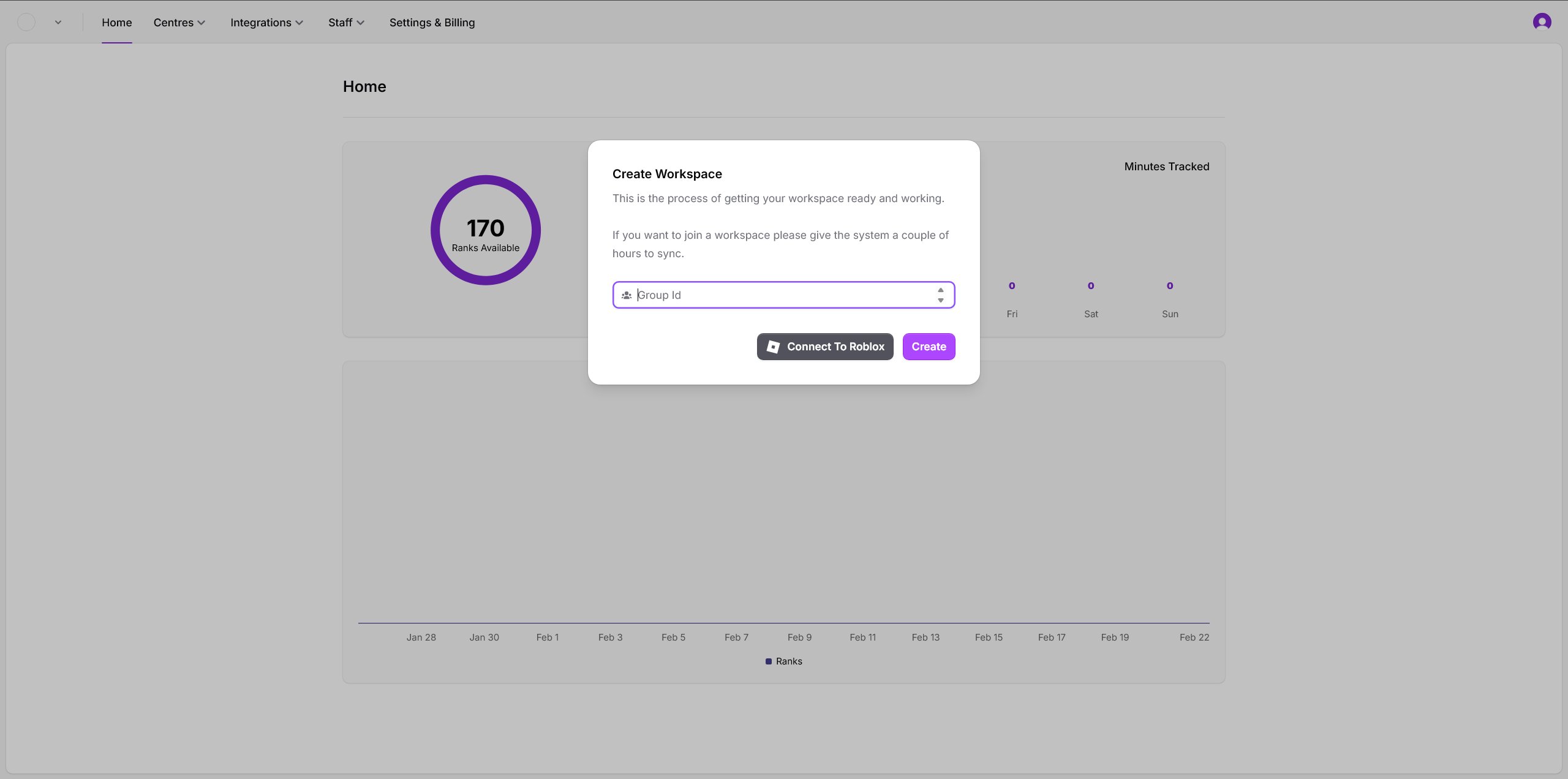
It’s strongly recommended that you use a dedicated holder account as your ranking bot in your Roblox group, not your main account. Make sure the account is ranked appropriately in your group before proceeding.
4
Authorize your Roblox account
You’ll be redirected to a Roblox authorization page: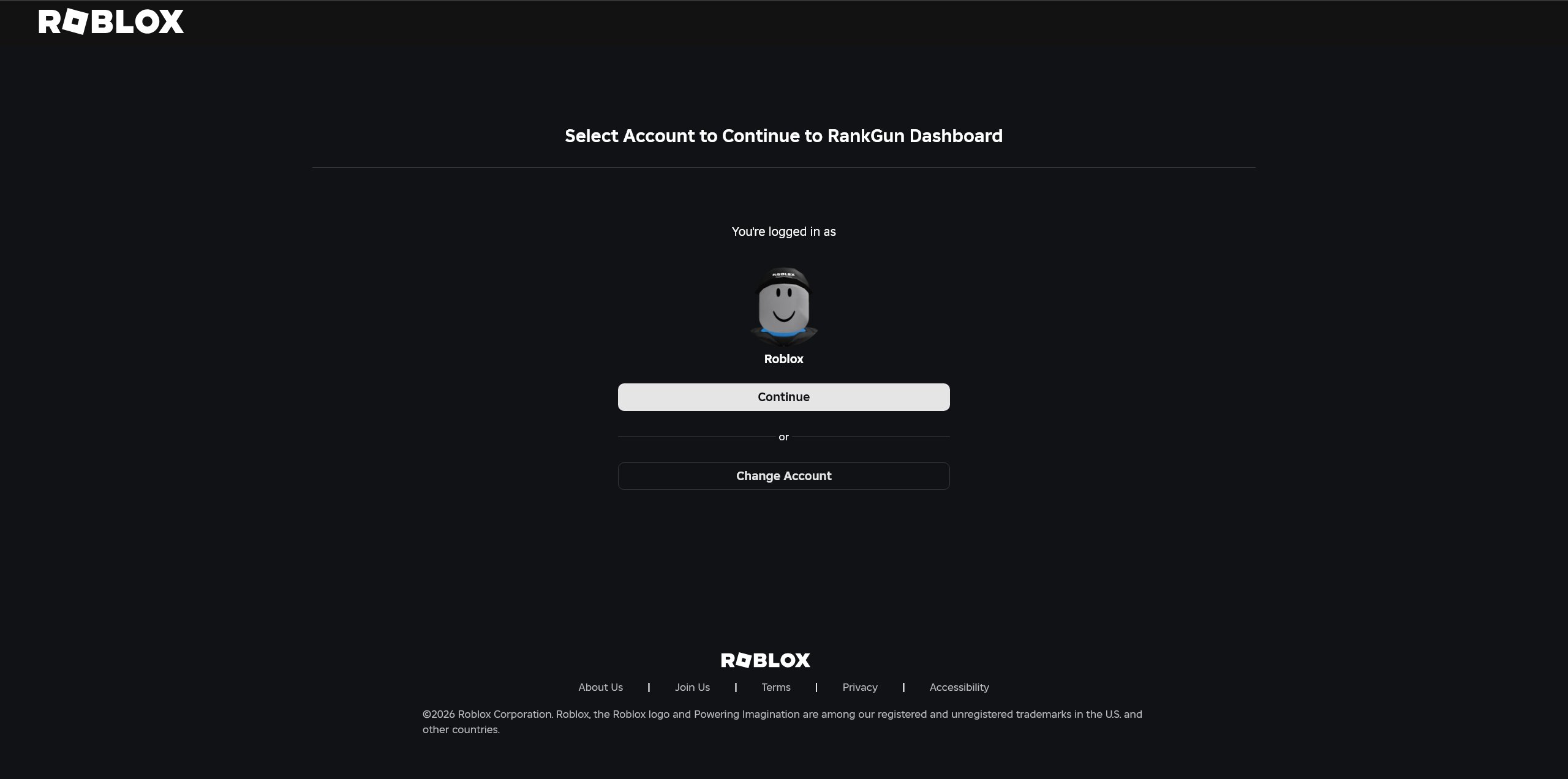
5
Connect your Roblox group
After authorizing, you’ll be redirected back to RankGun. Enter your group ID and click Create.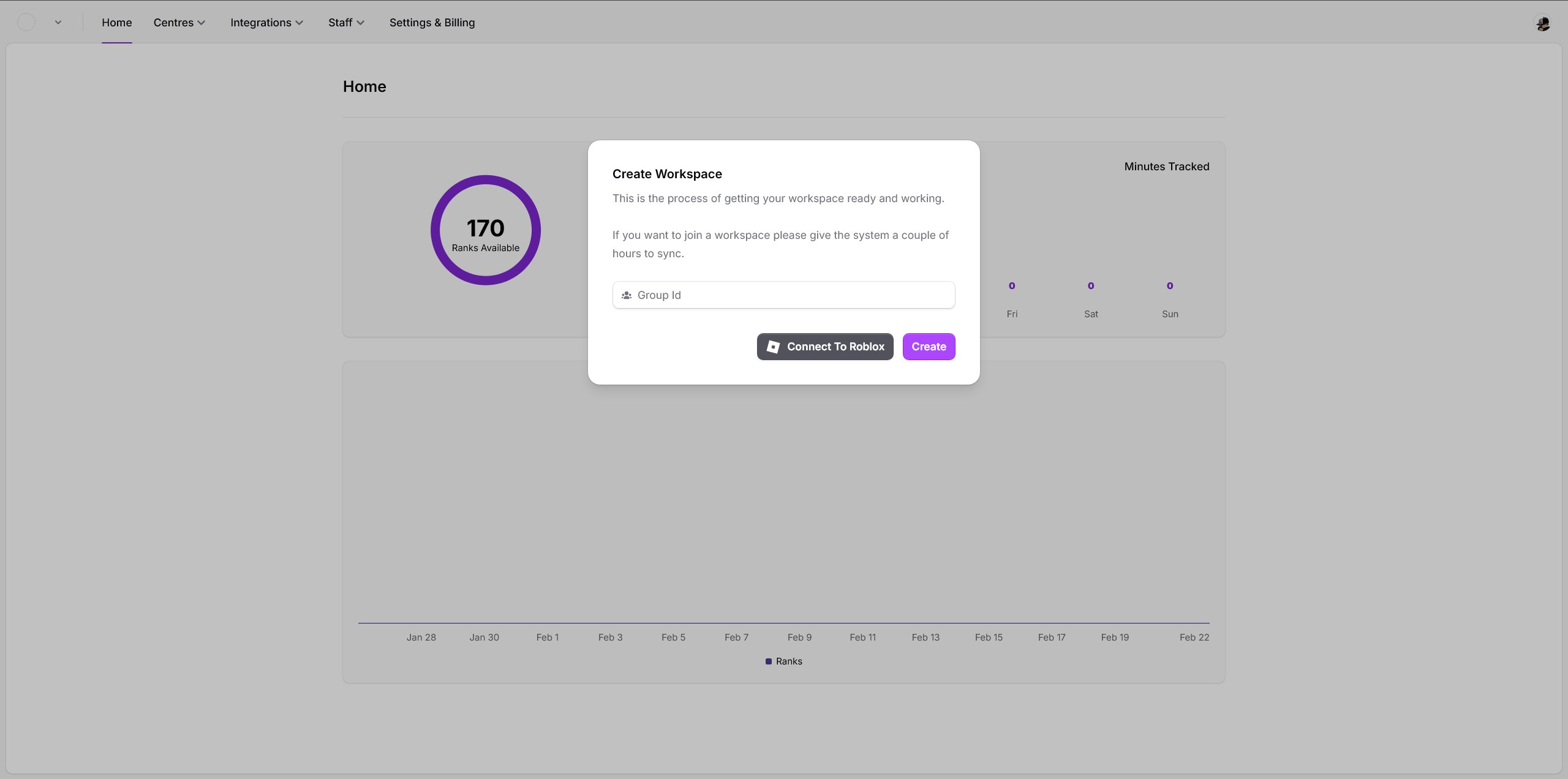
6
Set up rankings for your Roblox group
Go to Integrations, then Roblox, and click Connect to Roblox Group. Click Continue.
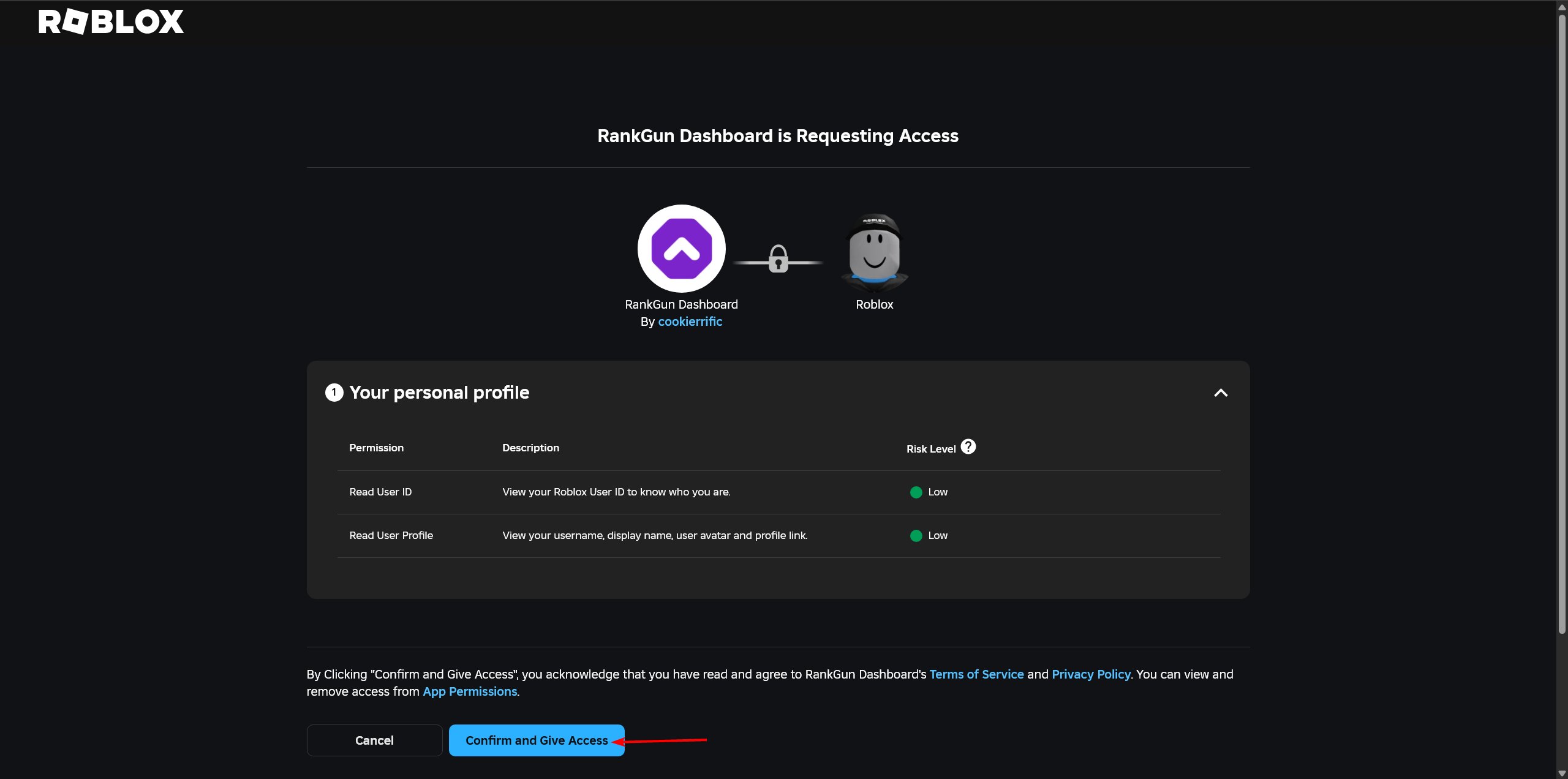
 Finally, click Confirm and Give Access.
 You’ll be redirected back to RankGun and your ranking integration will be set up.
7
Copy your RankGun Token
Go to Settings & Billing and click Copy Key.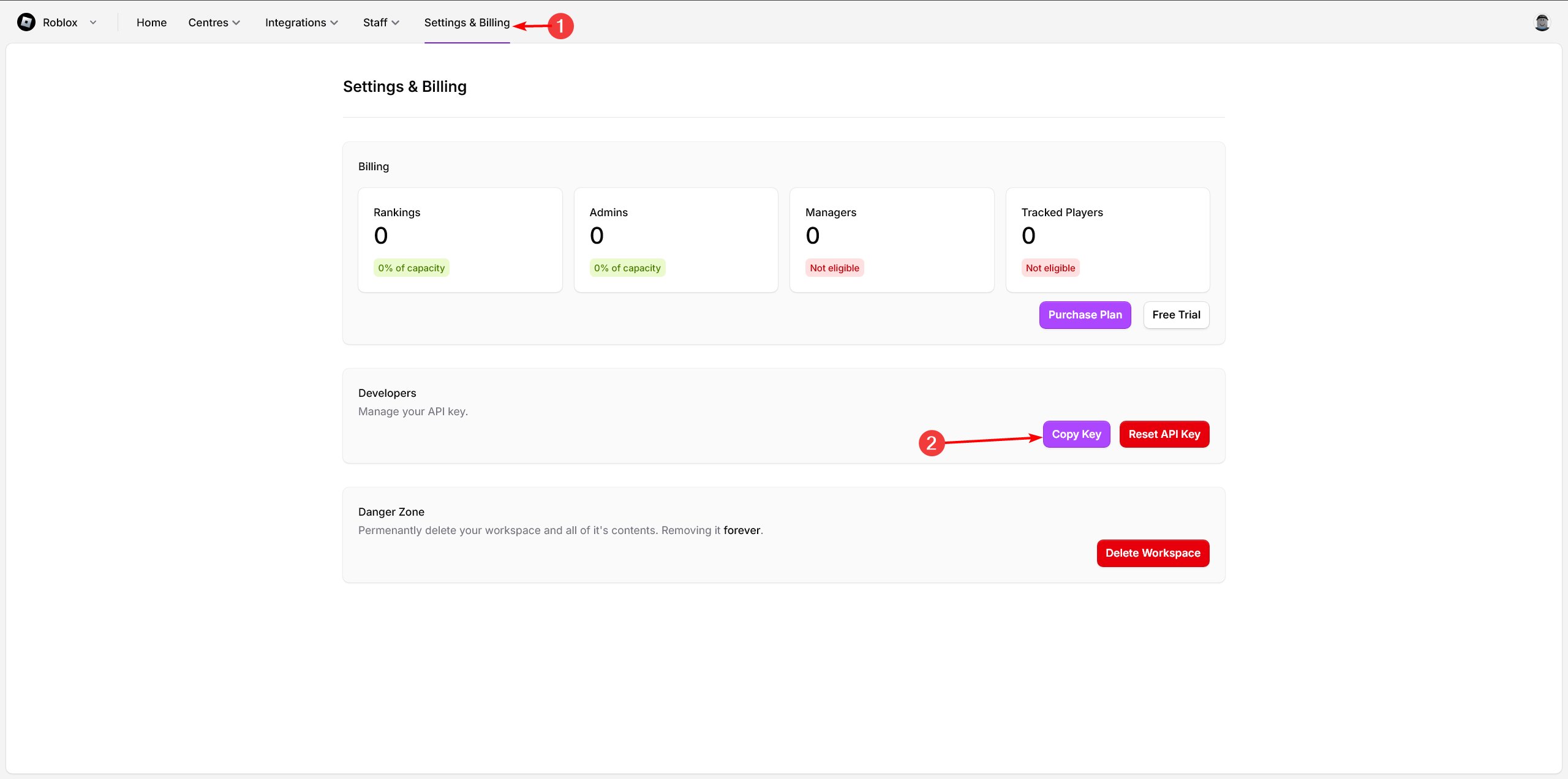

RankgunToken field in your Settings file.8
Get your RankGun Workspace ID
Navigate to your RankGun workspace. Your Workspace ID is the string of characters that appears after In the example above, the Workspace ID is
/workspace/ in the URL:QQrxTyNyhunaeEm. Paste this value into the RankgunWorkspaceId field in your Settings file.9
Configure the settings
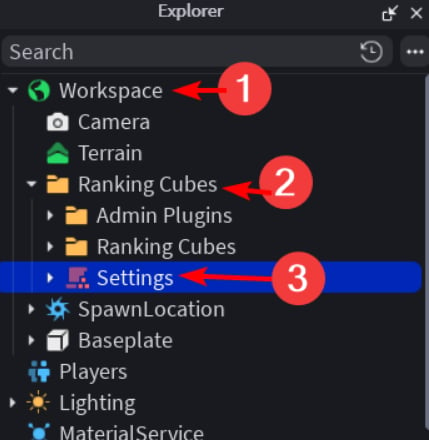
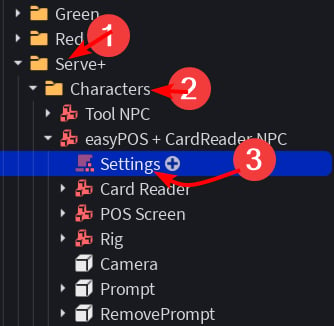
The Settings file is located inside the main Ranking Cubes folder, as shown below.